
| Prerequisites |
|---|
| Install the FlowCrypt Android app by following the Android App Installation Guide. |
This guide walks you through setting up FlowCrypt on Android after installation, including adding your email account and setting up encryption keys.
1. Open FlowCrypt
Launch the FlowCrypt app from your device.
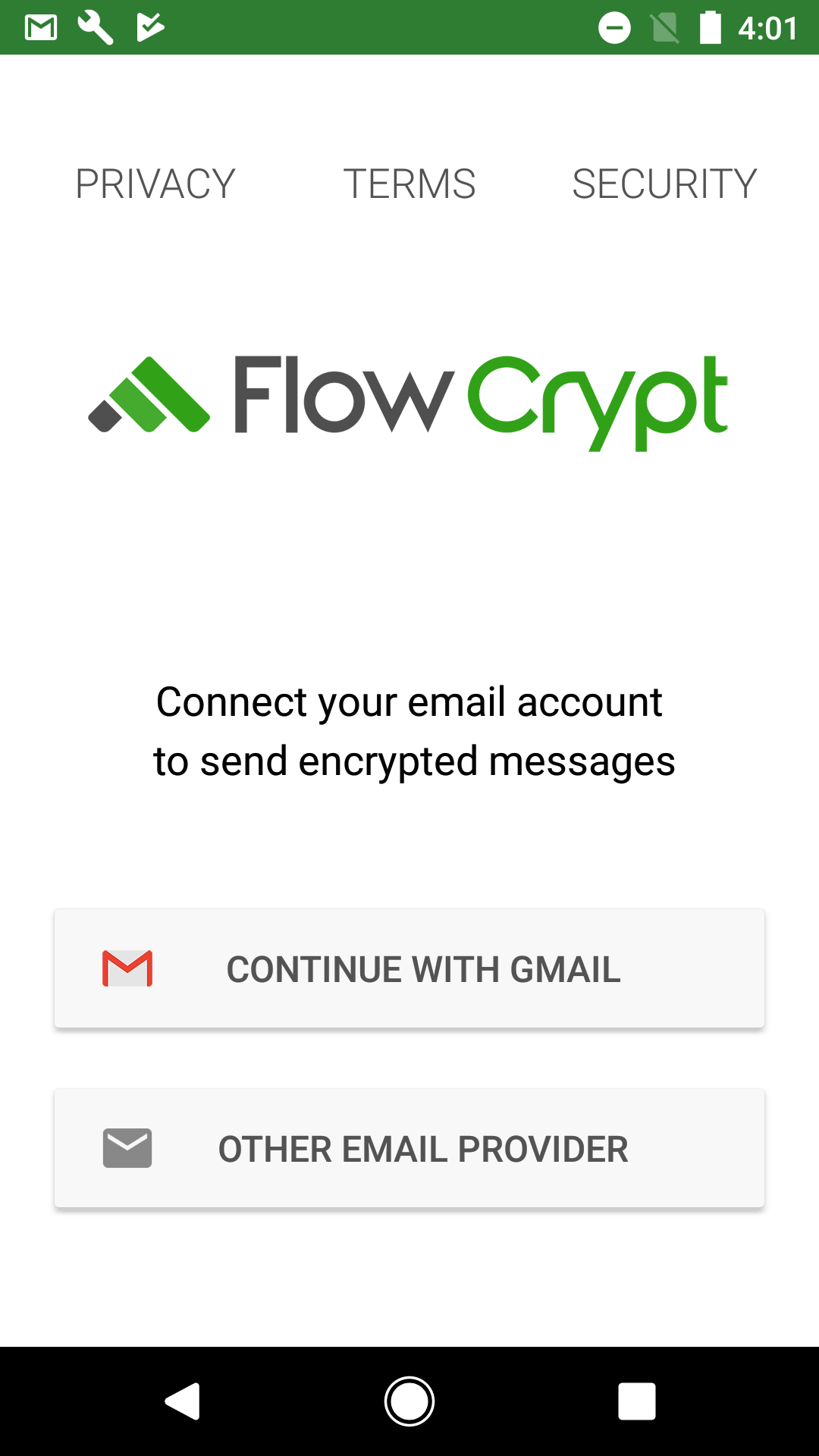
2. Choose Your Email Provider
Select how you want to sign in to your email account. FlowCrypt for Android offers two sign-in options:
Continue with Gmail
Choose Continue with Gmail if you use a Gmail account.
- Uses the Google account already signed in on your Android device
- No manual configuration required
- Recommended for most Gmail users
Other Email Provider
Choose Other Email Provider if you use a non-Gmail account or prefer manual configuration.
This option supports:
- Microsoft Outlook sign-in using a dedicated login button
- IMAP/SMTP login, where you manually enter your email provider details
When using IMAP/SMTP, you will need:
- Your email address
- IMAP server, port, and security settings
- SMTP server, port, and security settings
IMAP/SMTP setup is intended for users whose providers do not support Gmail or Outlook sign-in, or who require custom mail server configurations.
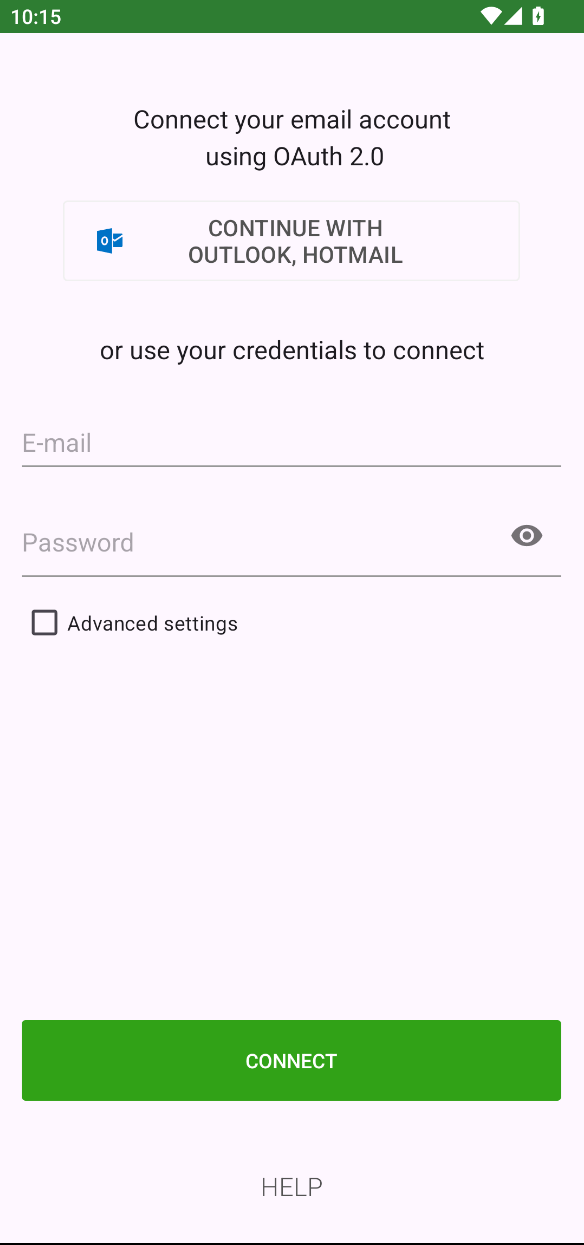
3. Set Up Your Encryption Keys
After signing into your email account, FlowCrypt will now check whether you already have an existing OpenPGP private key.
You can choose one of the following options:
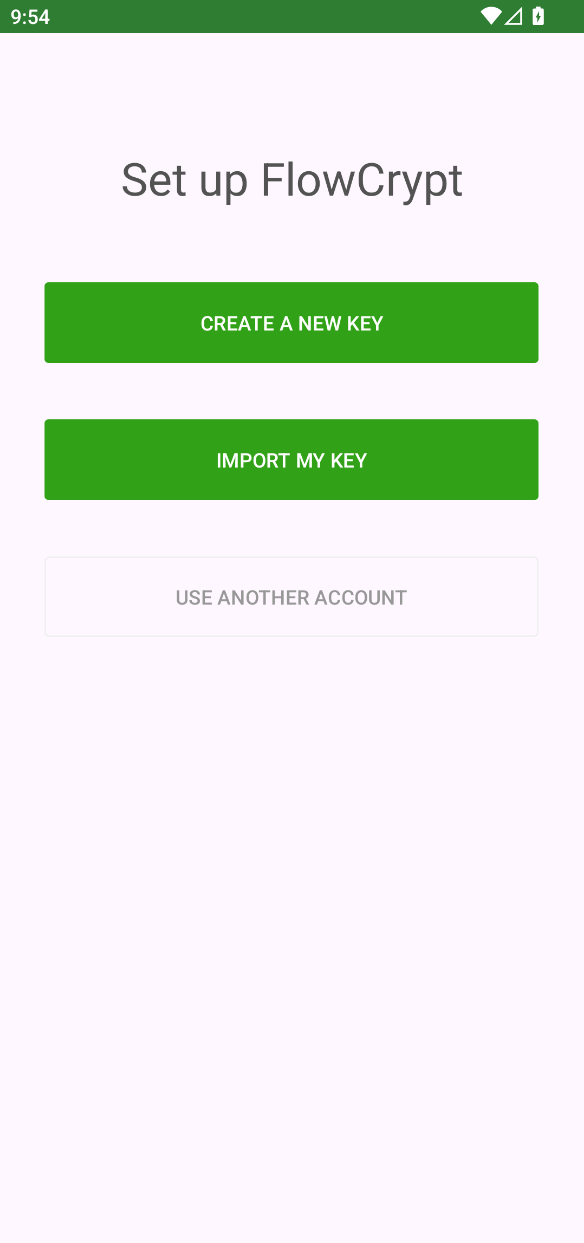
Option A: Create a New Private Key
If this is your first time using email encryption, FlowCrypt can generate a new private key for you.
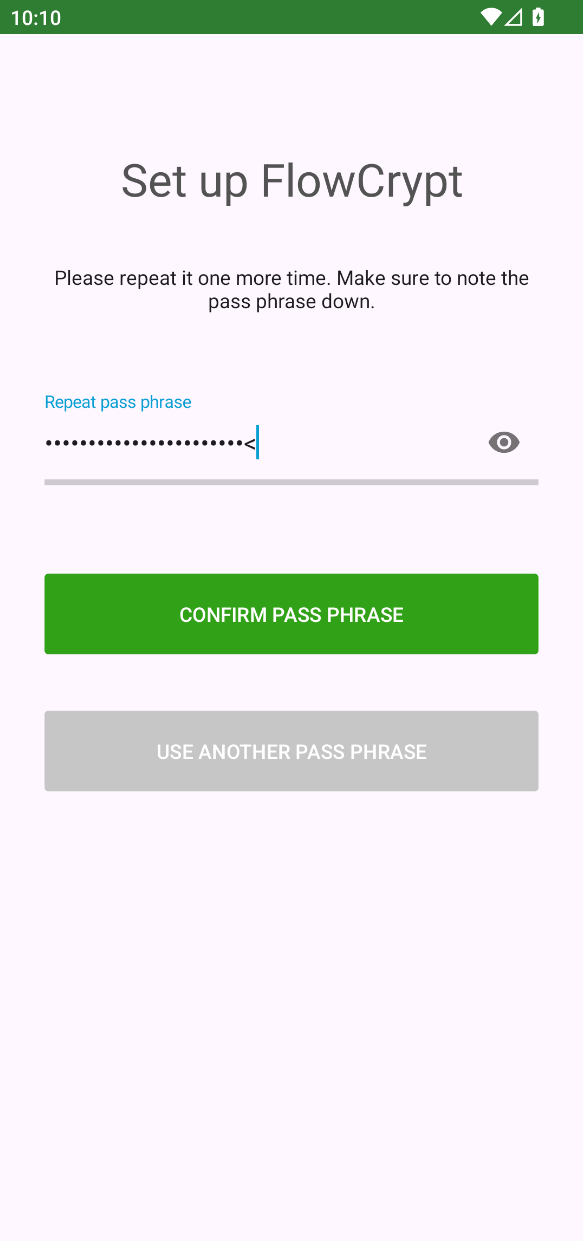
- Choose a strong passphrase
- This passphrase protects your private key
- You will need it to read encrypted emails
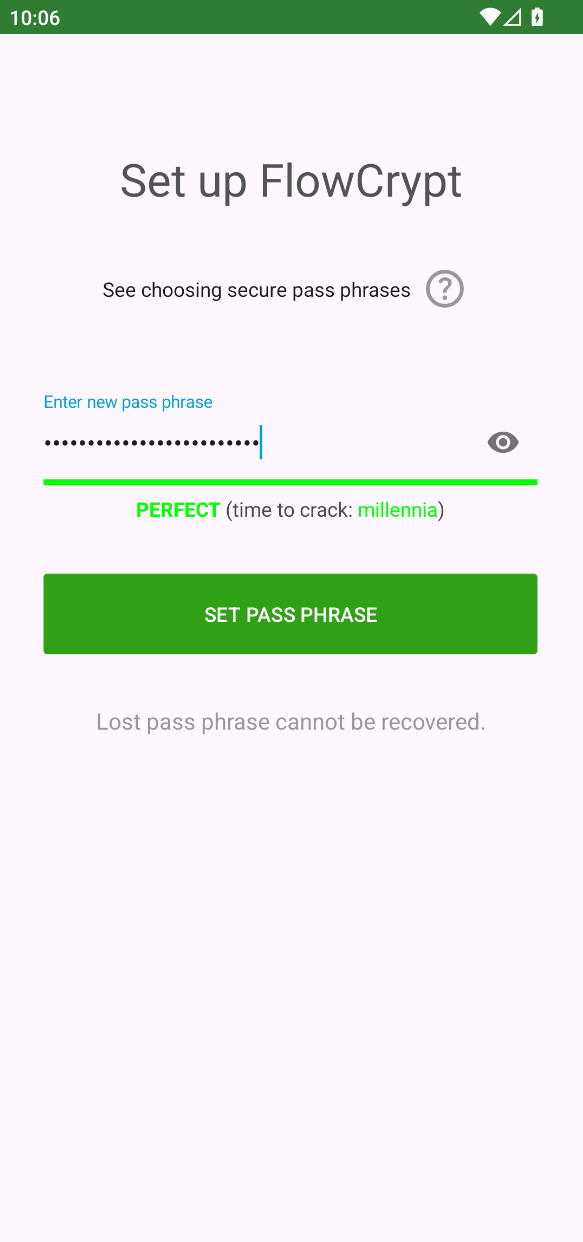
You’ll then be asked to repeat entering the passphrase.
Option B: Import an Existing Private Key
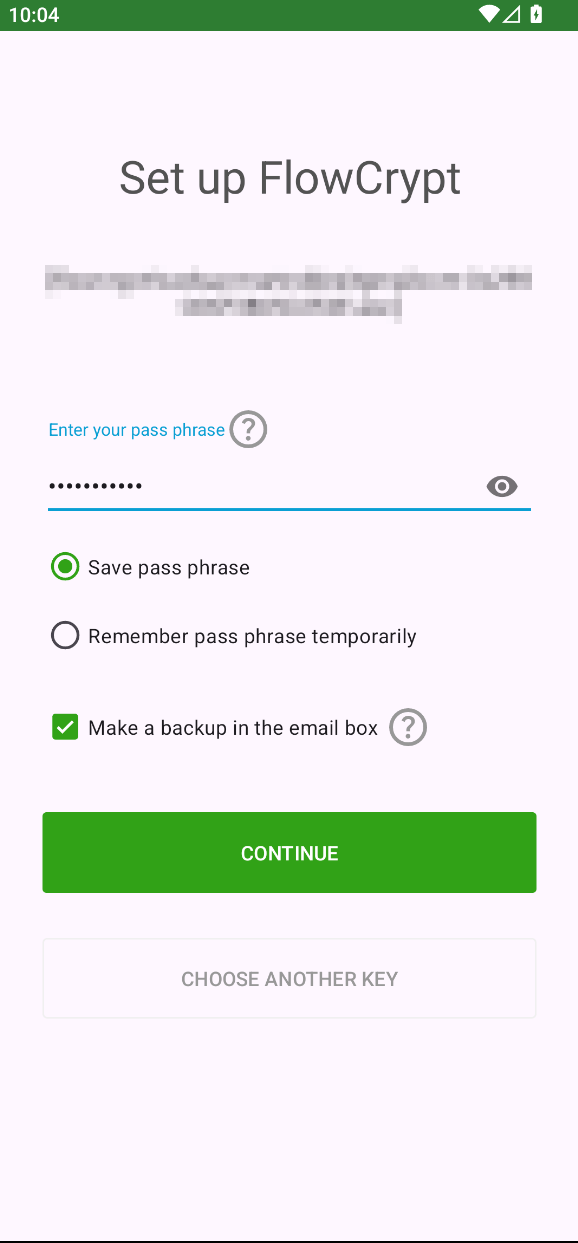
If you already use OpenPGP, you can import your existing private key.
4. Setup Complete
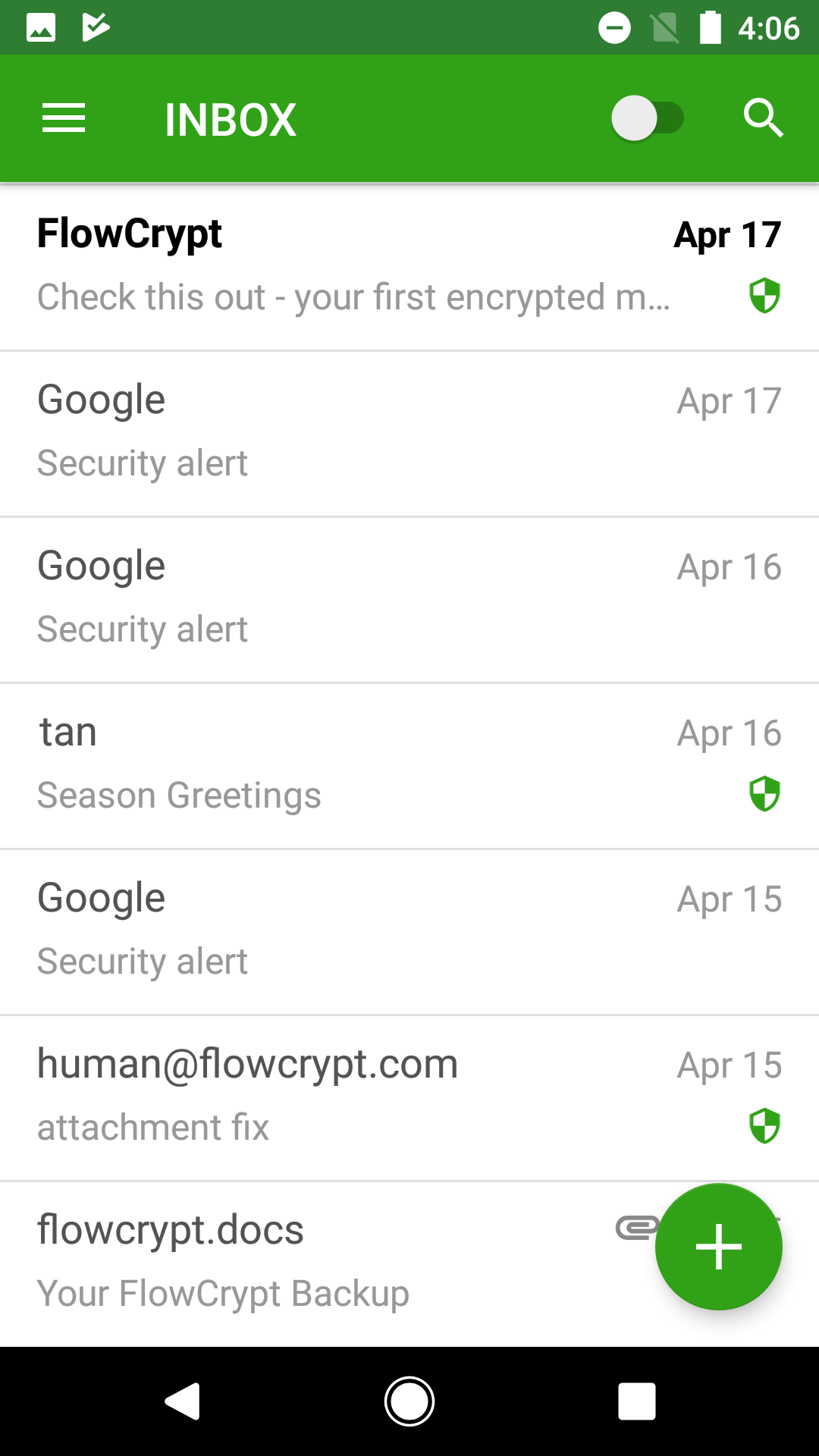
Once your key is ready, FlowCrypt will finish setup and open your encrypted inbox.
You are now ready to:
- Send encrypted emails
- Receive and decrypt encrypted messages
- Send encrypted attachments
Next Steps
- Learn how to Send Encrypted Emails
- Learn how to Open Encrypted Emails
- Manage keys and security settings in Android App Settings