
This guide explains how to send an encrypted email using the FlowCrypt Android app.
| Prerequisites |
|---|
| The FlowCrypt Android app is installed |
| The app has been set up with an email account and encryption keys |
1. Open the Inbox
Open the FlowCrypt Android app. You will land on your email inbox.
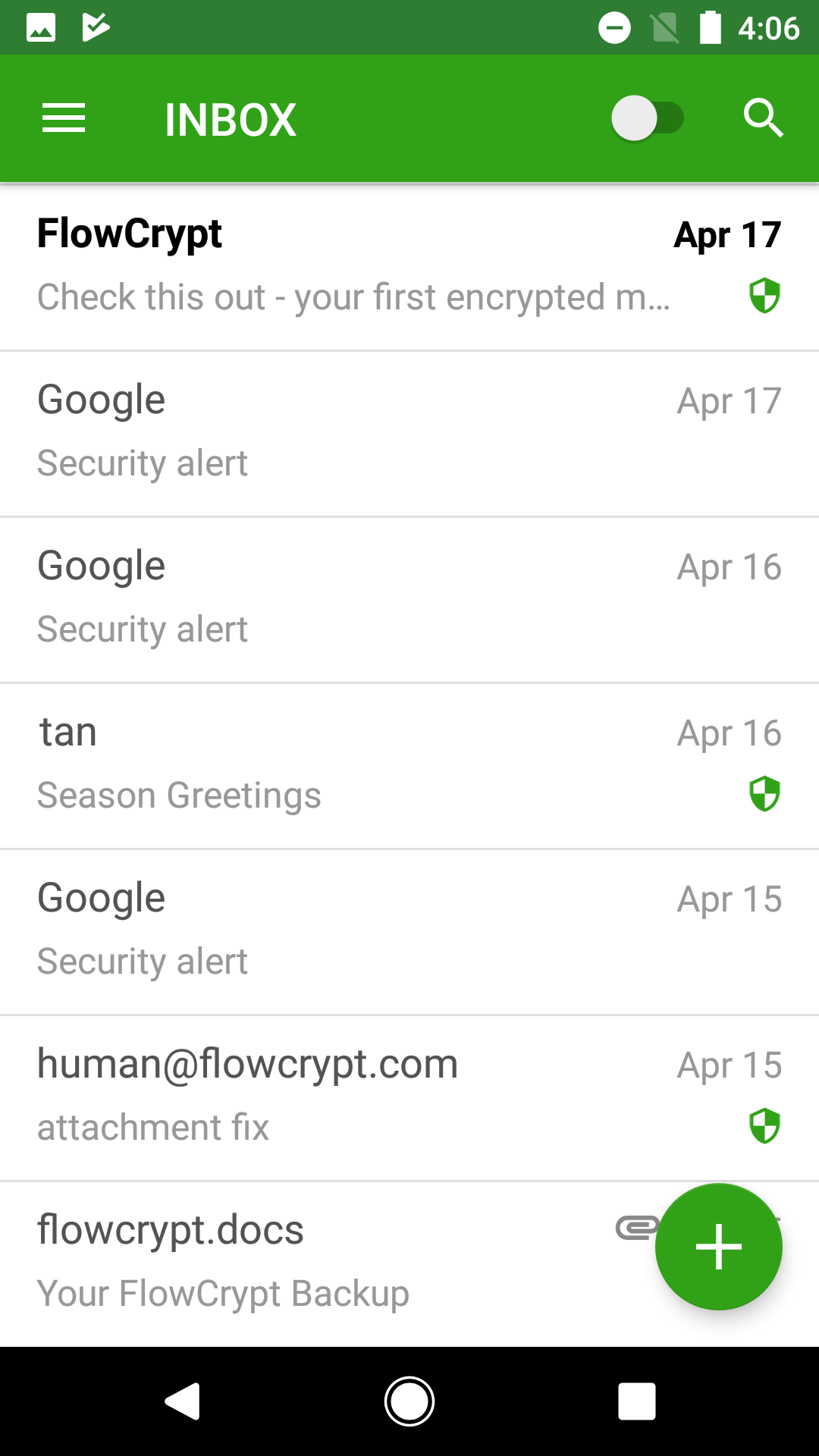
2. Compose a New Email
Tap the Compose button to start writing a new email.
3. Add Recipient
Enter the recipient’s email address.
FlowCrypt will automatically determine whether encryption can be used:
- FlowCrypt user: encryption works automatically
- Other OpenPGP user: their public key must already be available or imported
If the recipient’s public key is not found, you will be prompted to add or import it before sending.
4. Write the Message
Fill in the email fields:
- To: recipient email address
- Subject: email subject
- Message body: email content
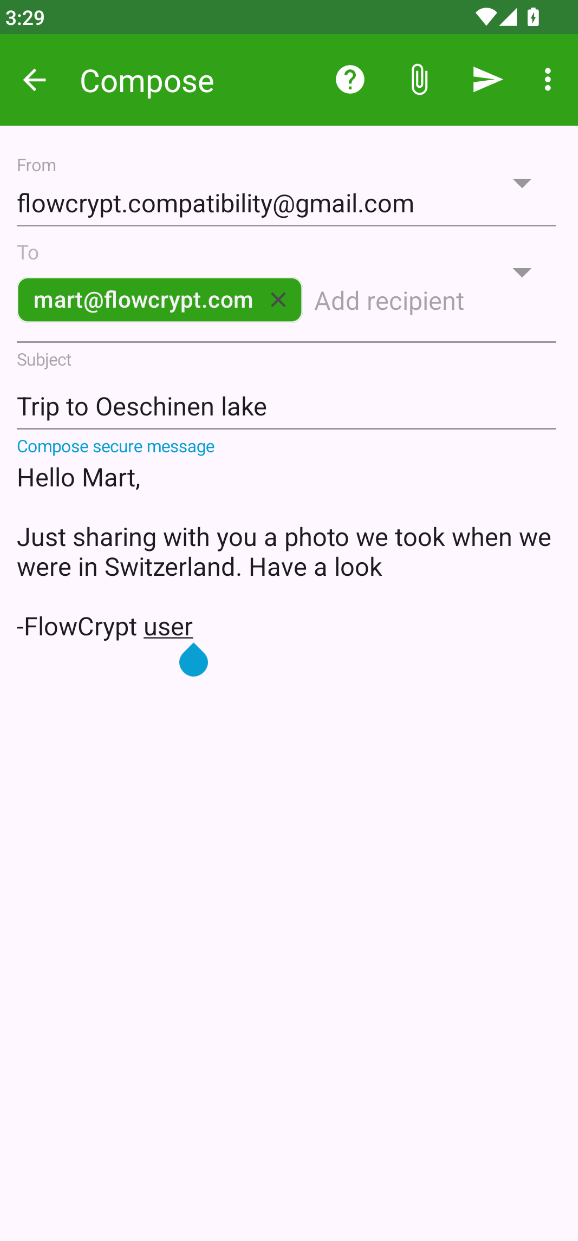
Attachments can also be added and will be encrypted automatically.
To add an attachment, tap the paper clip icon in the upper-right corner of the compose screen, on the same row as the send button.
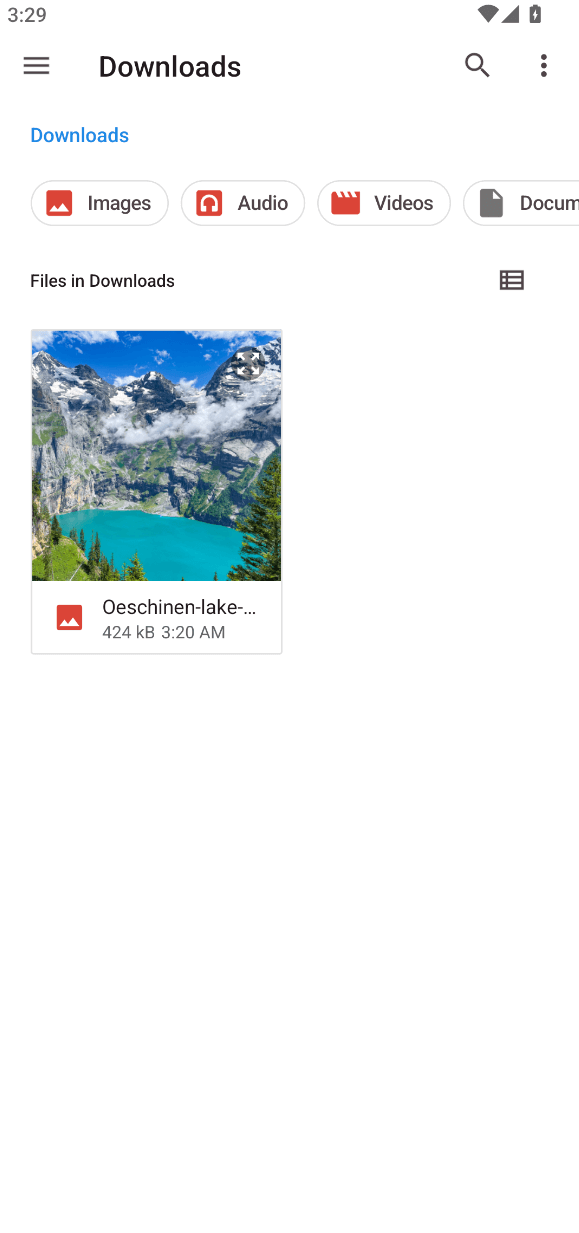
a) Select the File
Your device’s file manager will open. Browse and select the file you want to attach.
b) Confirm Attachment
The selected file will now appear in the compose screen as an attachment.
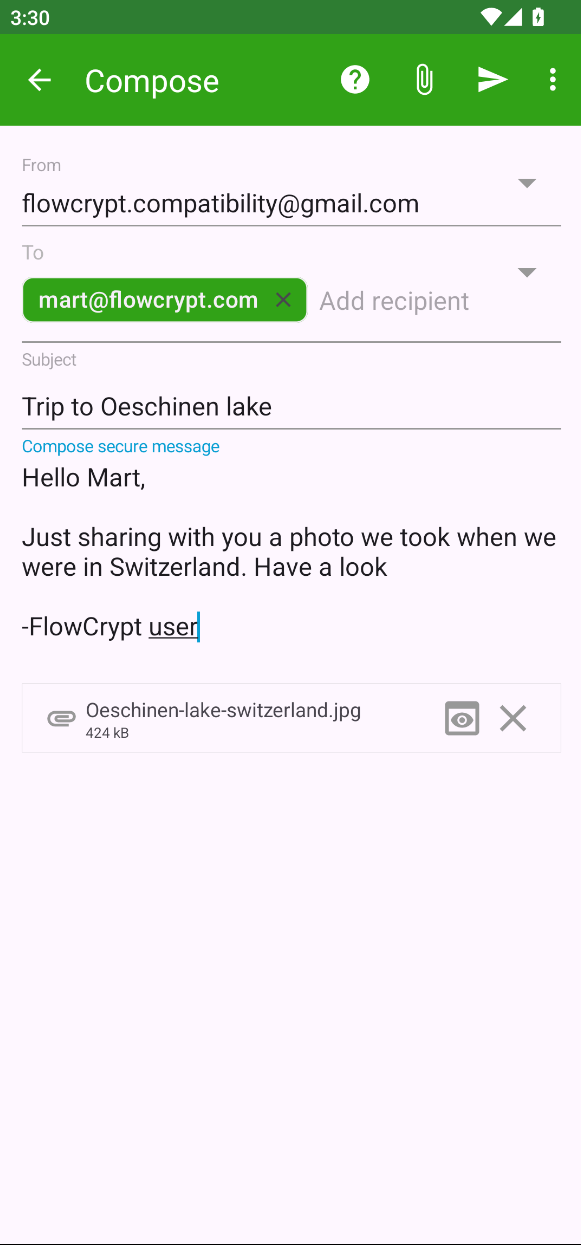
5. Send the Encrypted Email
Tap the Send (paper plane) button.
The message will be encrypted on your device and sent securely to the recipient.