This guide explains how to open and read a PGP-encrypted email using the FlowCrypt Android app. If the encrypted email includes attachments, you can also download them by following the steps below.
| Prerequisites |
|---|
| The FlowCrypt Android app is installed |
| The app has been set up with an email account and encryption keys |
1. Open the Inbox
Launch the FlowCrypt Android app to access your inbox and view your received messages.
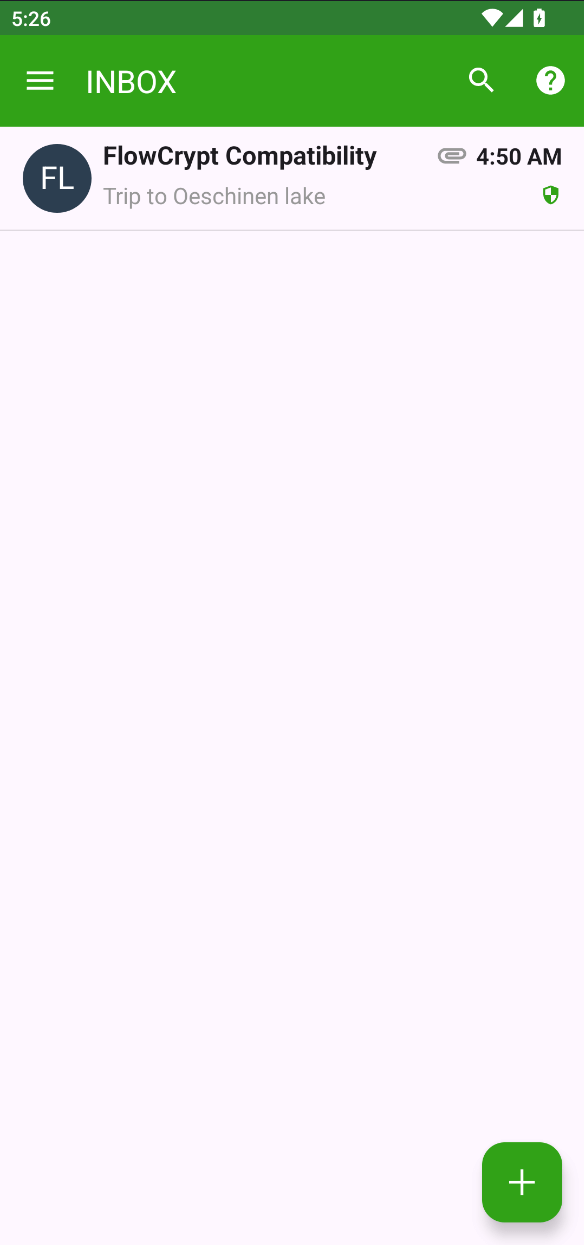
2. Open the Encrypted Email
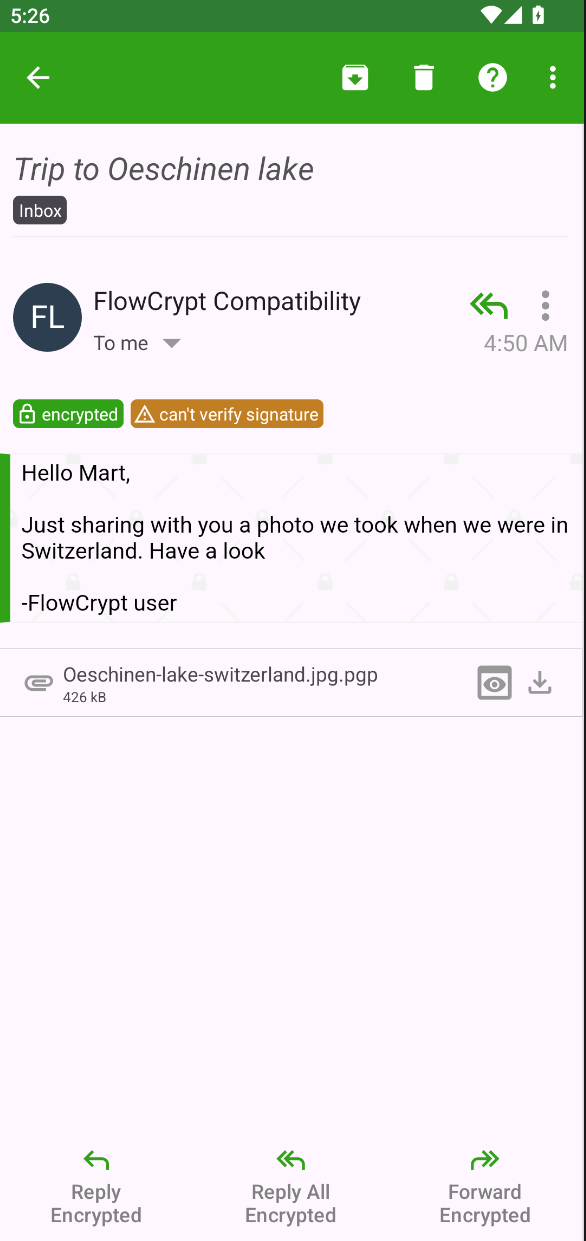
Tap the encrypted email you want to read. FlowCrypt will automatically decrypt the message if it was sent to your PGP-enabled email account, allowing you to view its contents.
3. Check for Attachments
If the encrypted email includes attachments, they will appear at the bottom of the message. Each attachment will display a download icon next to its name.
4. Download the Attachment
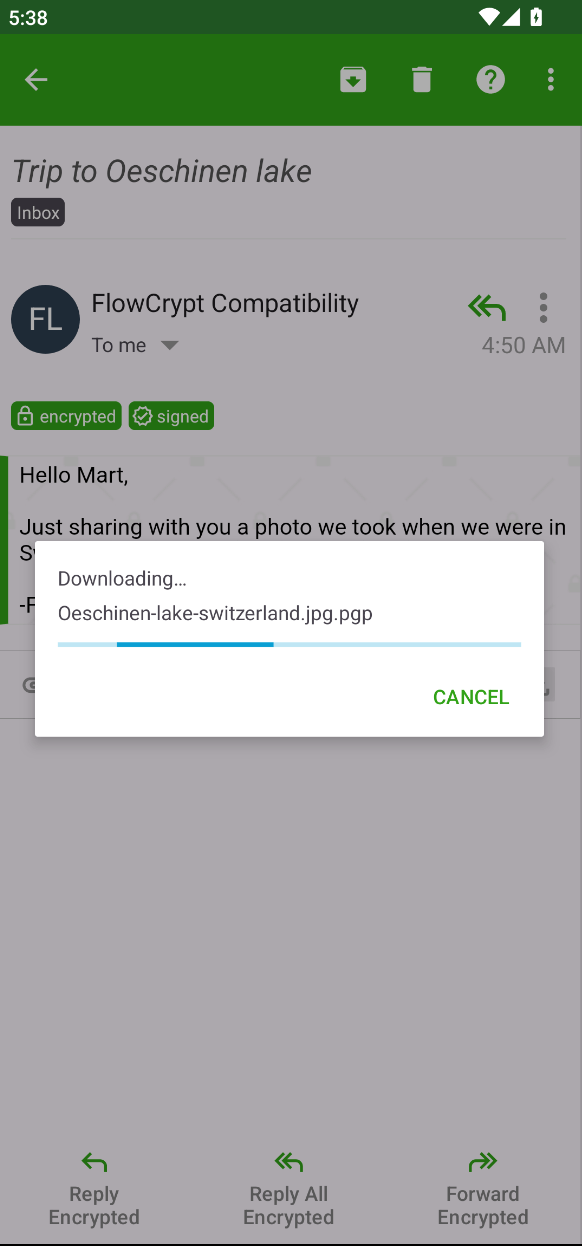
To save an attachment, tap the download icon next to the file name. The app will briefly show a downloading state while the file is being saved to your device.
5. Access the Downloaded File
Once downloaded, the attachment will be available in your device’s Downloads folder. You can open it using the appropriate app for that file type, such as a PDF viewer, image viewer, or office app.