| Prerequisites |
|---|
| The FlowCrypt Android app is installed |
| The app has been set up with an email account and encryption keys |
| You know how to access the FlowCrypt settings |
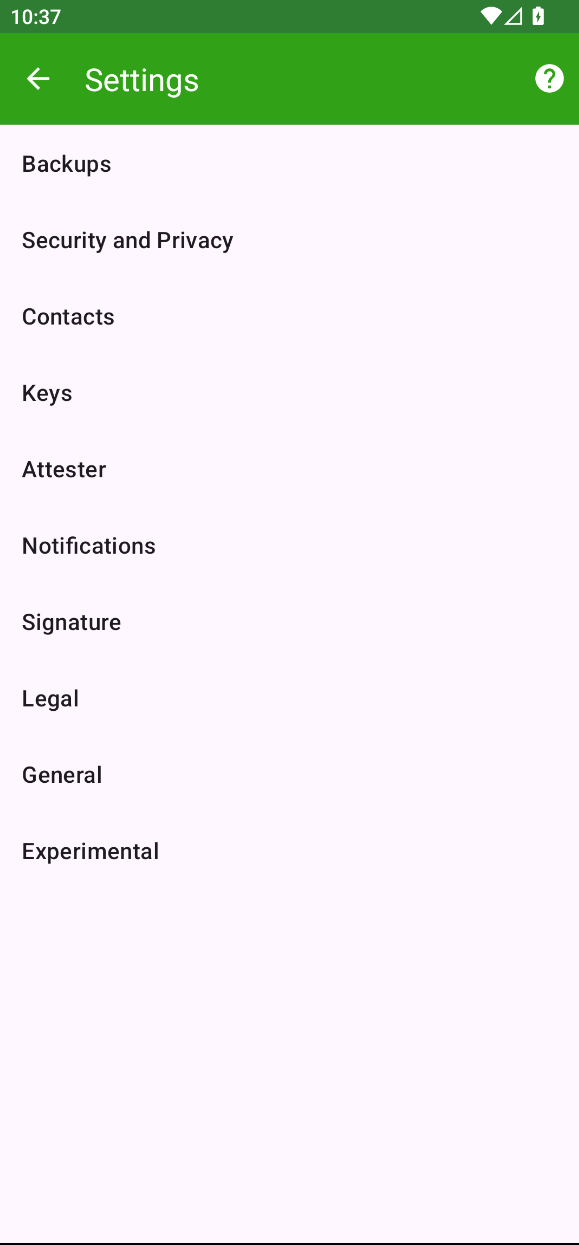
1. Open FlowCrypt Settings
Navigate to the FlowCrypt Settings screen in the Android app.
2. Open Keys
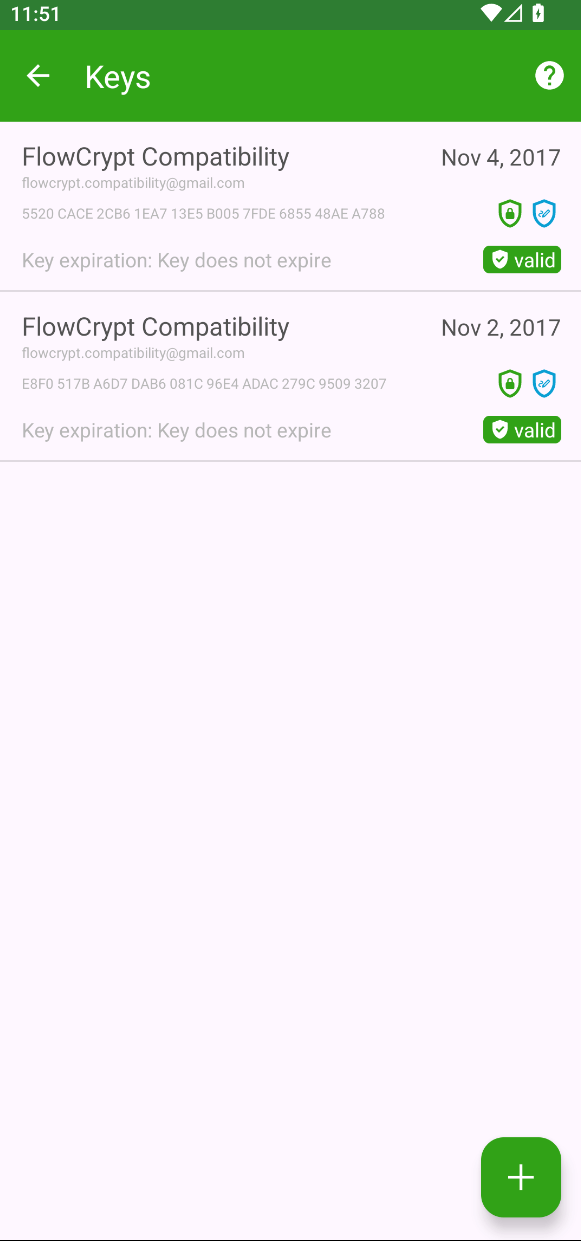
From the settings list, tap Keys to view all private keys stored on your device.
3. Select the Key to Update
From the list of keys, tap the private key you want to update. In this example, the Expires field is set to Never.
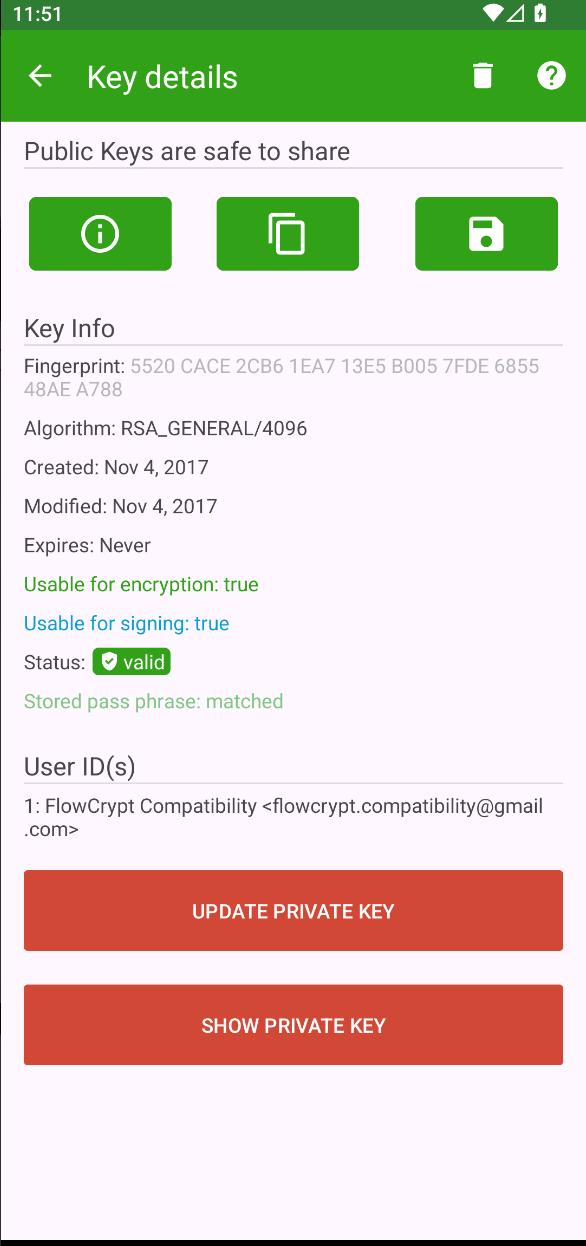
Once you have decided which key to update, tap it to view the details, then tap the UPDATE PRIVATE KEY button.
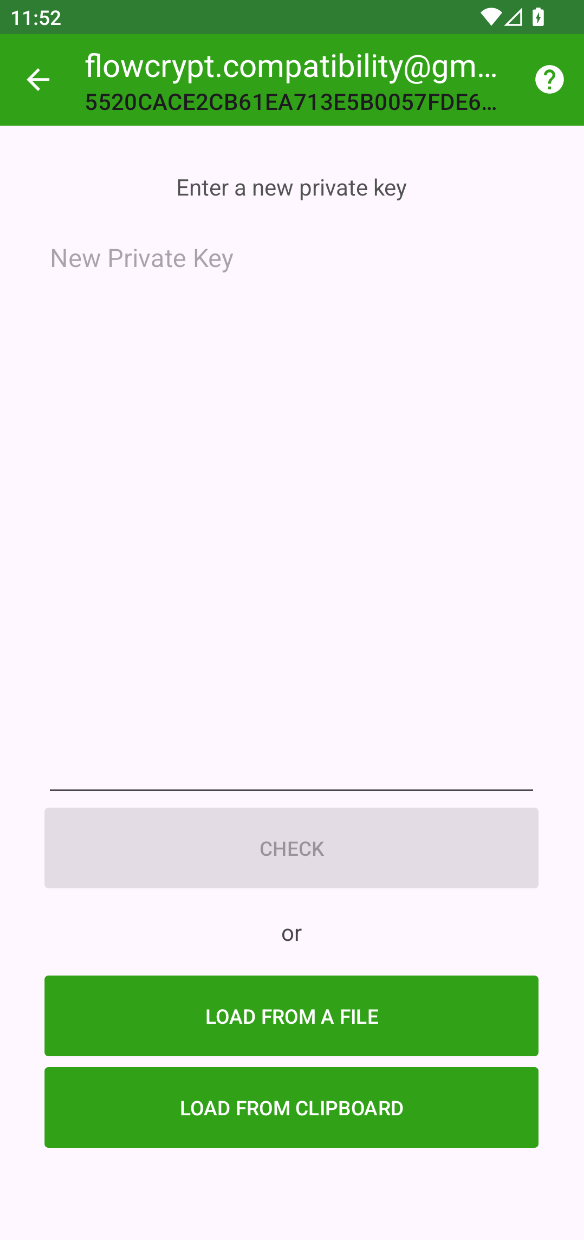
4. Import the Updated Private Key
Choose how you want to import the updated private key:
- Import from clipboard, or
- Import from file
Once the key is successfully recognized, tap USE THIS KEY to proceed with importing the updated key.
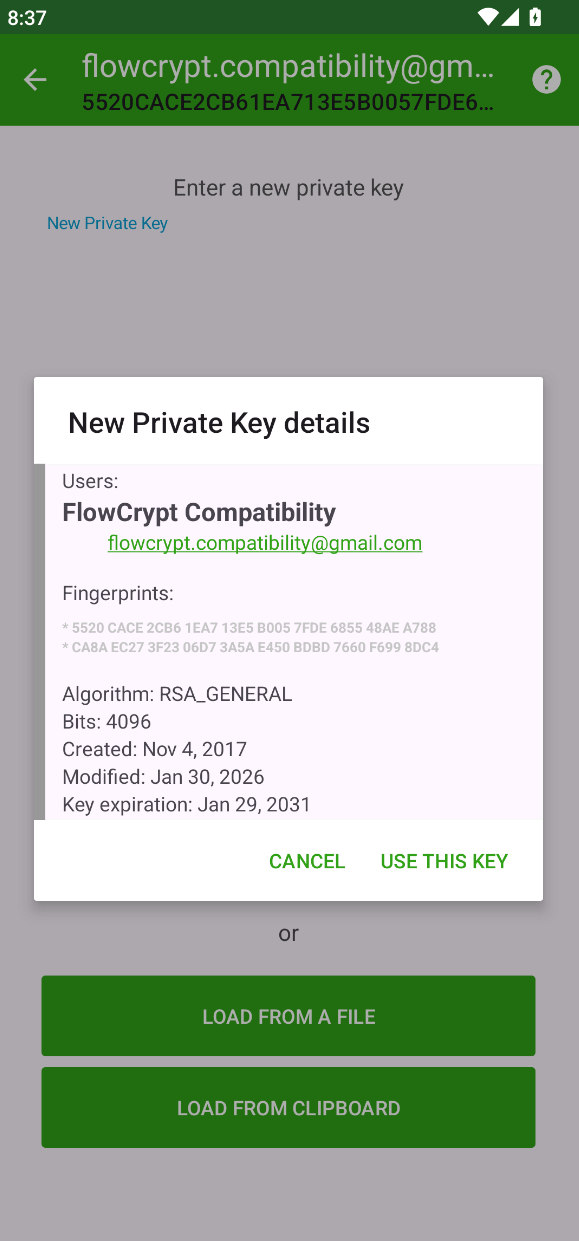
5. Verify the Updated Key
After the import, you will be asked to enter the key’s passphrase to complete the process.
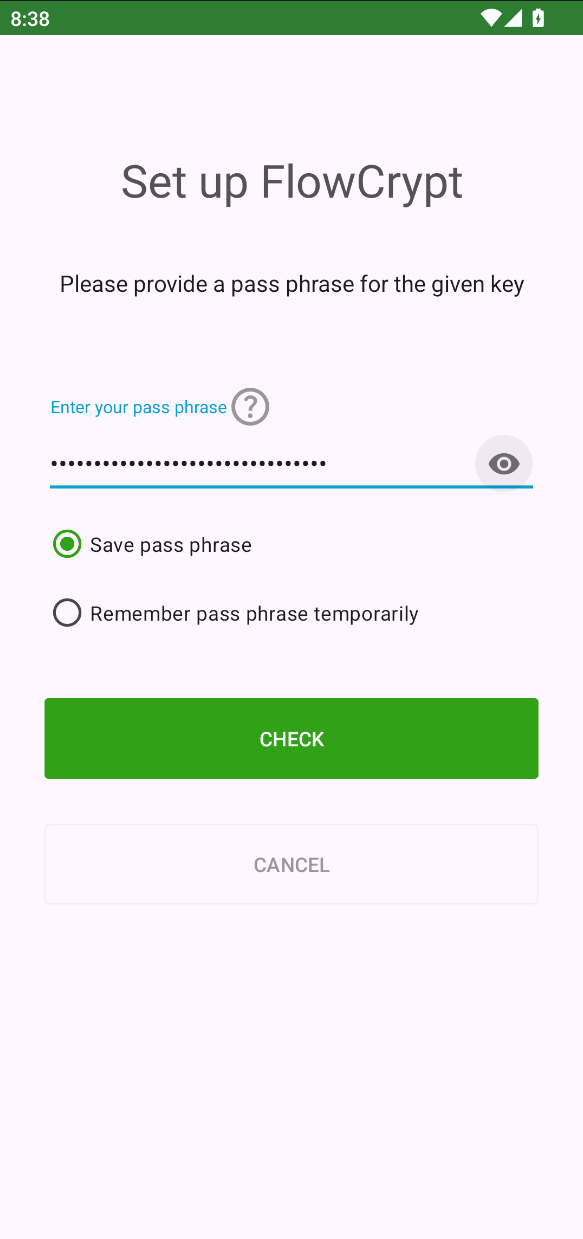
Carefully review the key information, such as:
- Expiration date
- Fingerprint
- Validity status
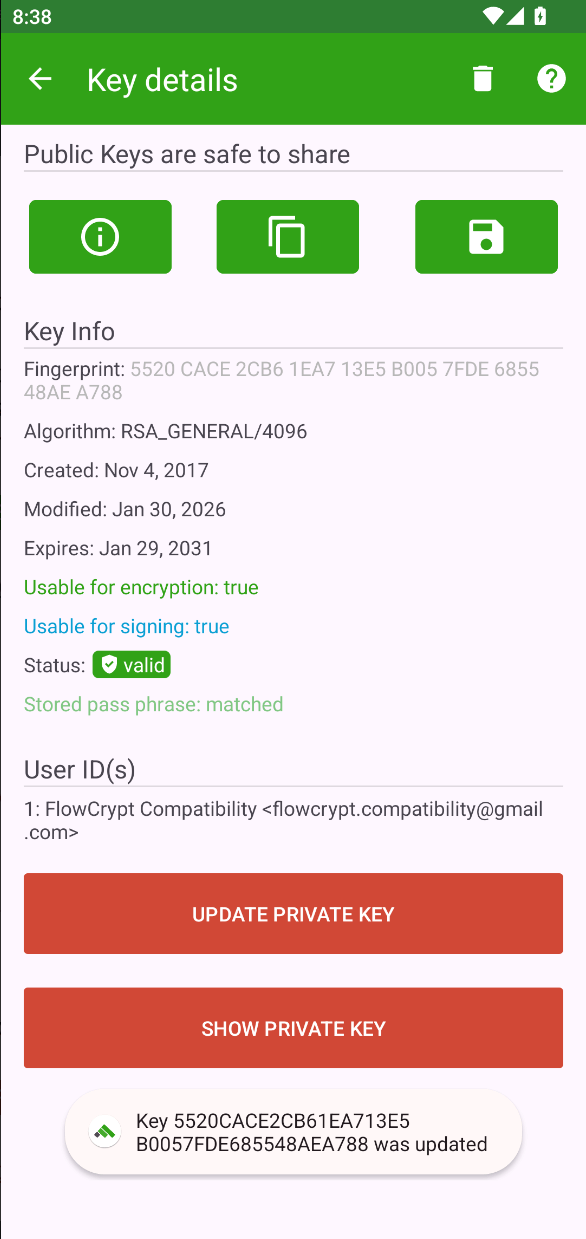
In this example, confirm that the key expiration date has been updated successfully.