| Prerequisites |
|---|
| You’ve already installed FlowCrypt and created a new private key or imported the existing private key you had used previously. |
| View the Send and Receive Overview guide to get more familiar with sending and receiving encrypted emails. |
This documentation will guide you through sending a signed-only email using FlowCrypt’s secure compose.
1. Open https://mail.google.com in the same browser where you have installed and set up the FlowCrypt browser extension.
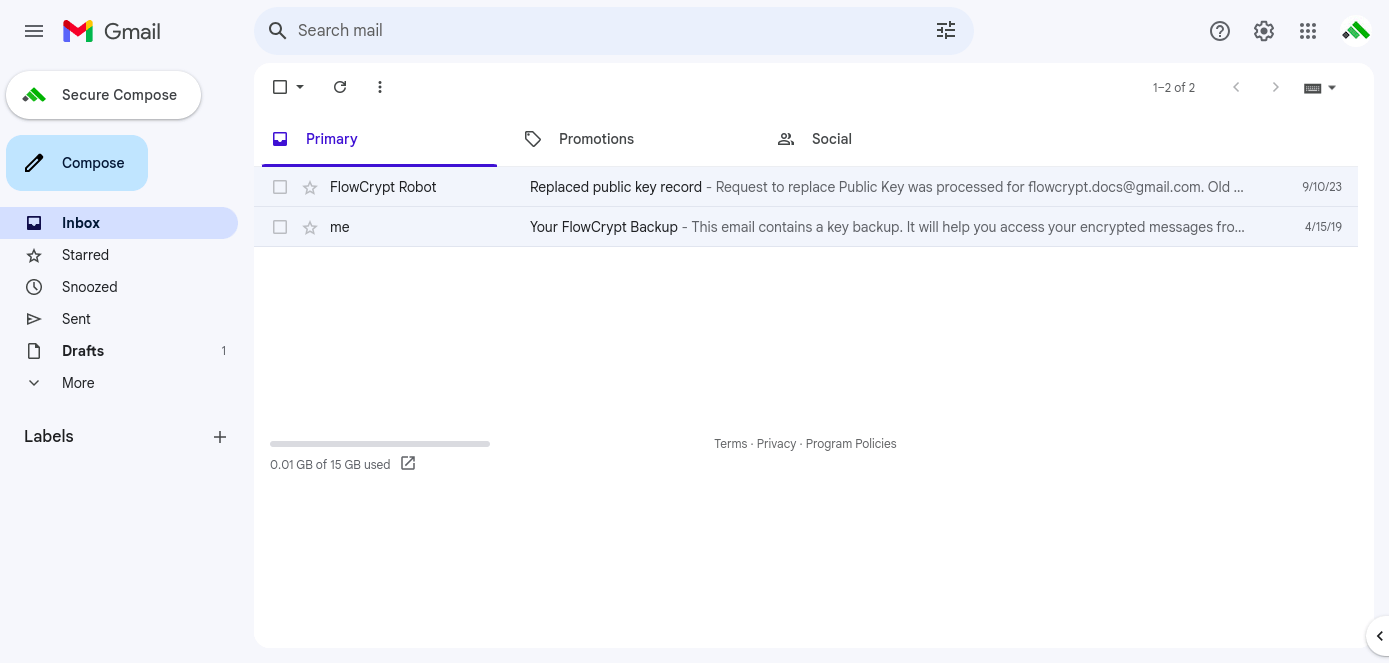
2. Click on FlowCrypt’s Secure Compose. Here, notice the drop-up menu beside the Encrypt, Sign and Send button.
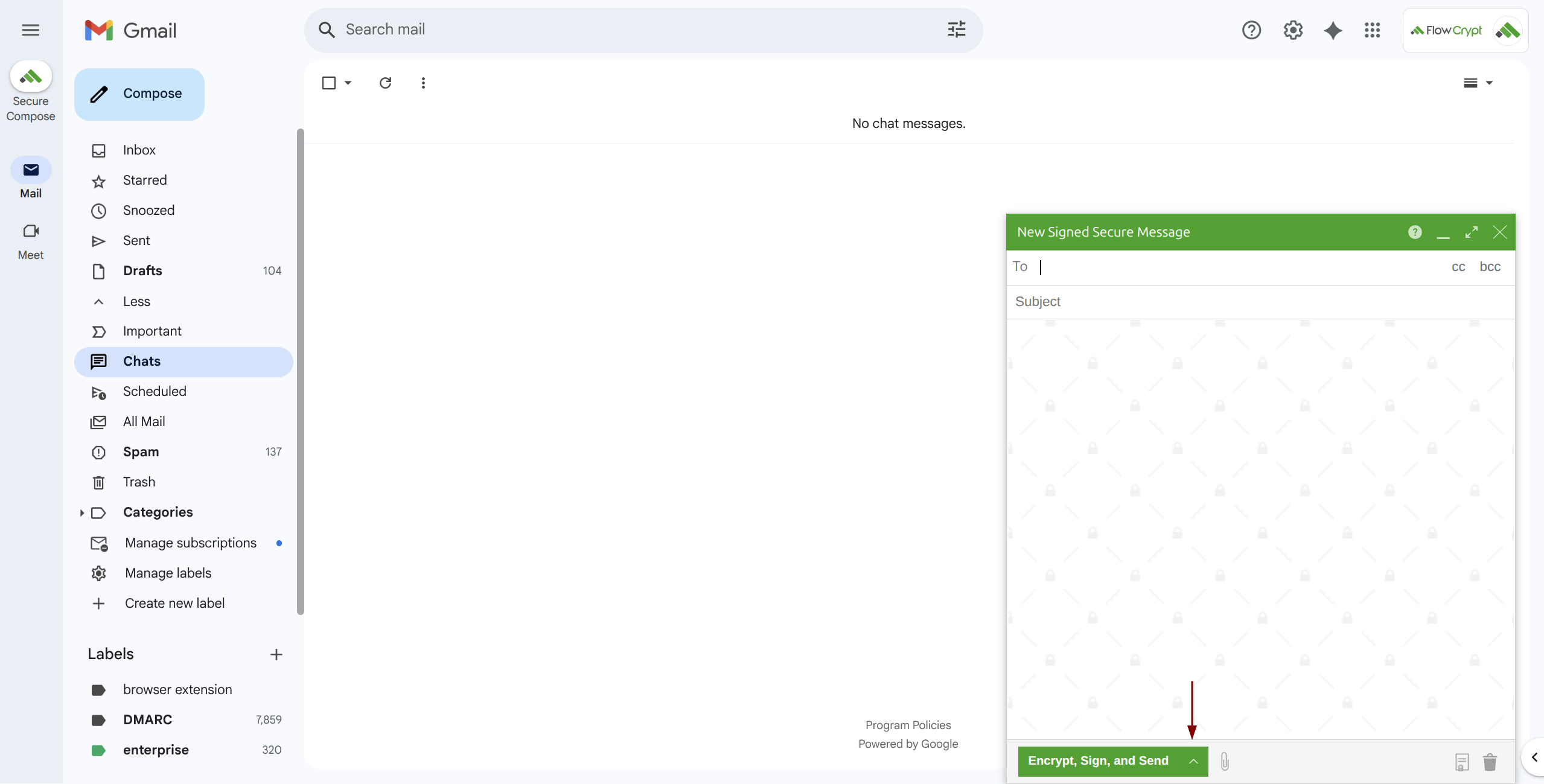
3. Click the drop-up menu button to choose the secure messaging options.
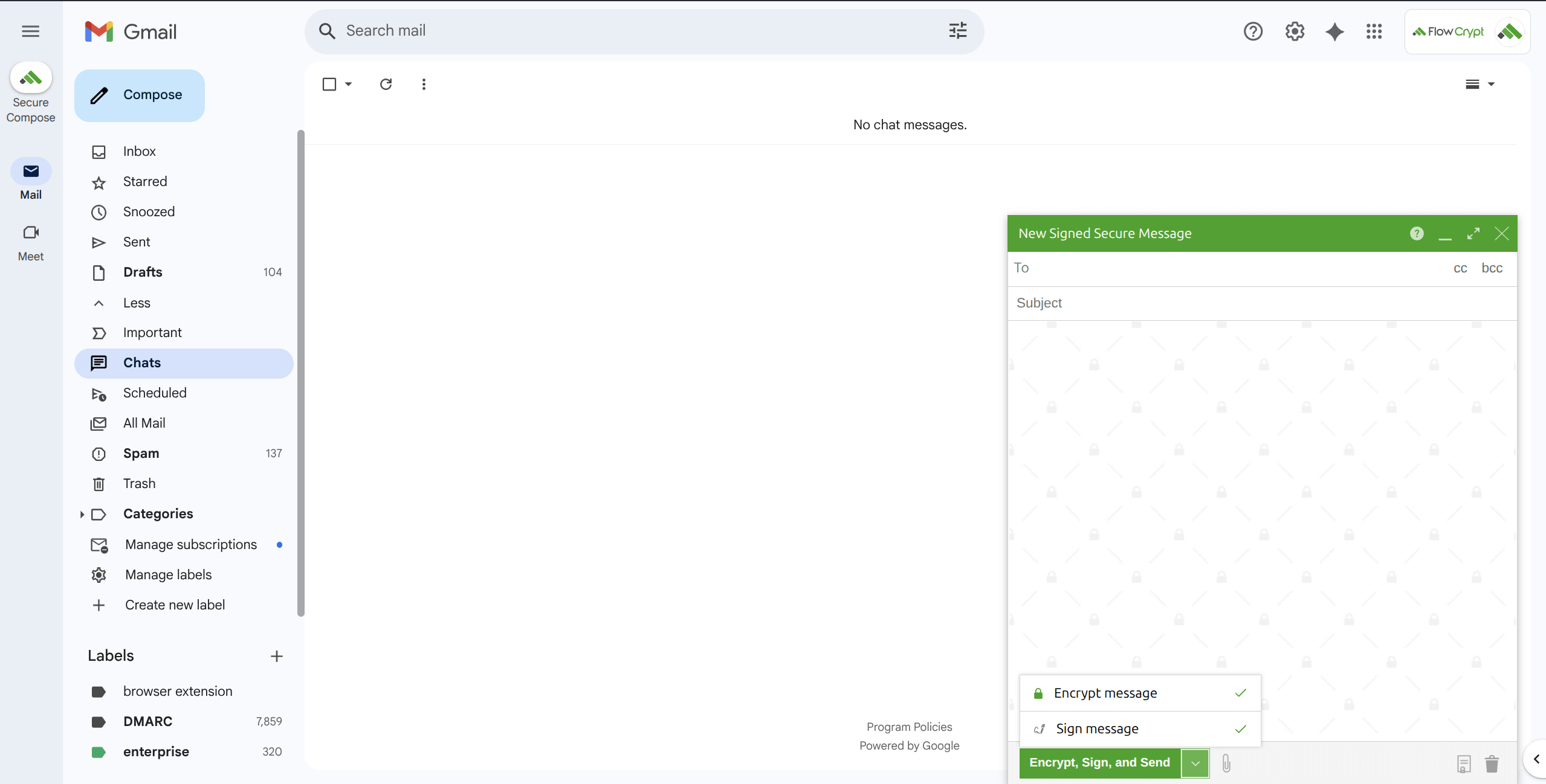
4. Uncheck the option Encrypt message and leave the option Sign message checked. You’ll also notice that the Secure Compose theme turns gray, indicating that the email will not be encrypted.
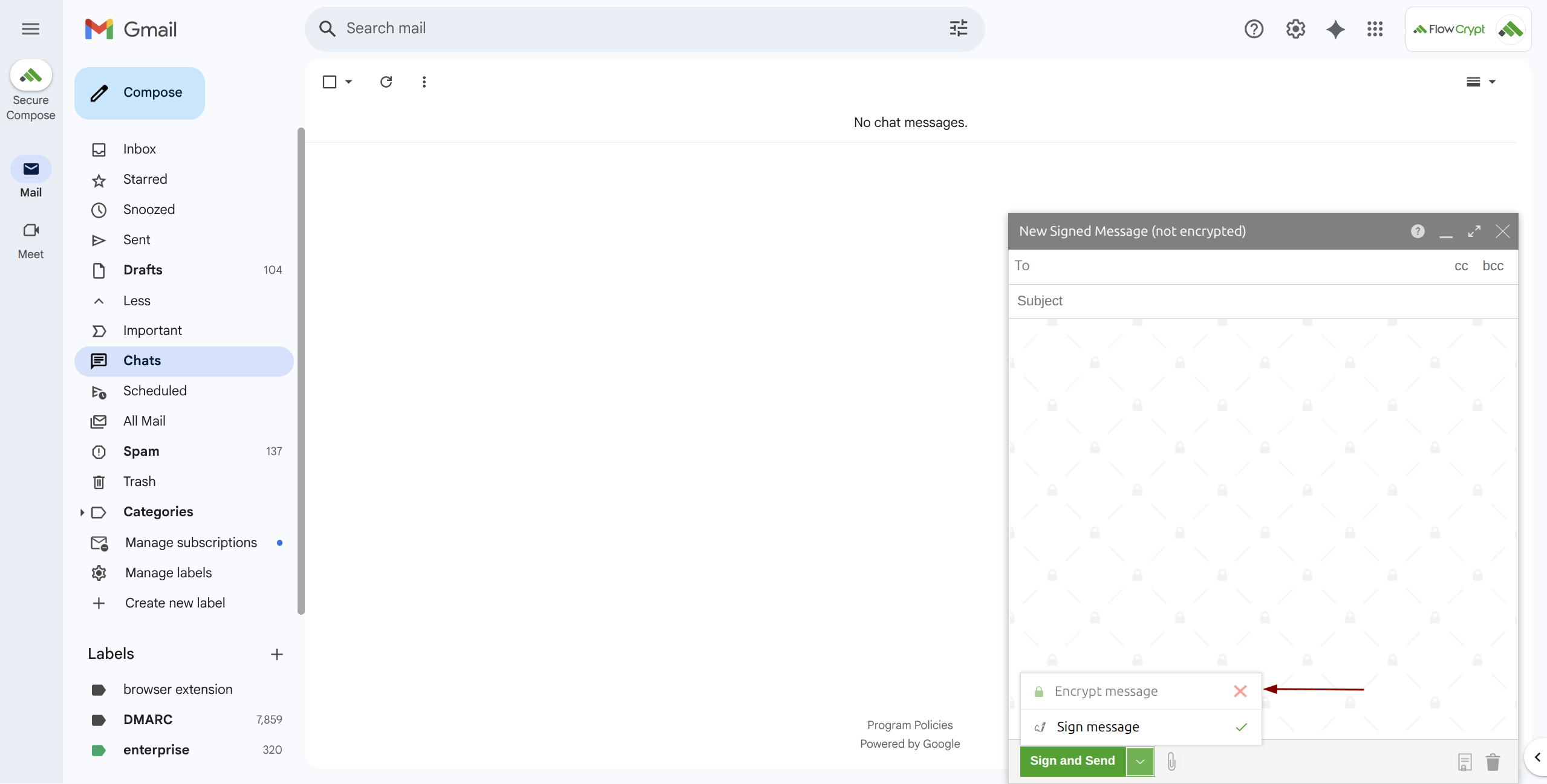
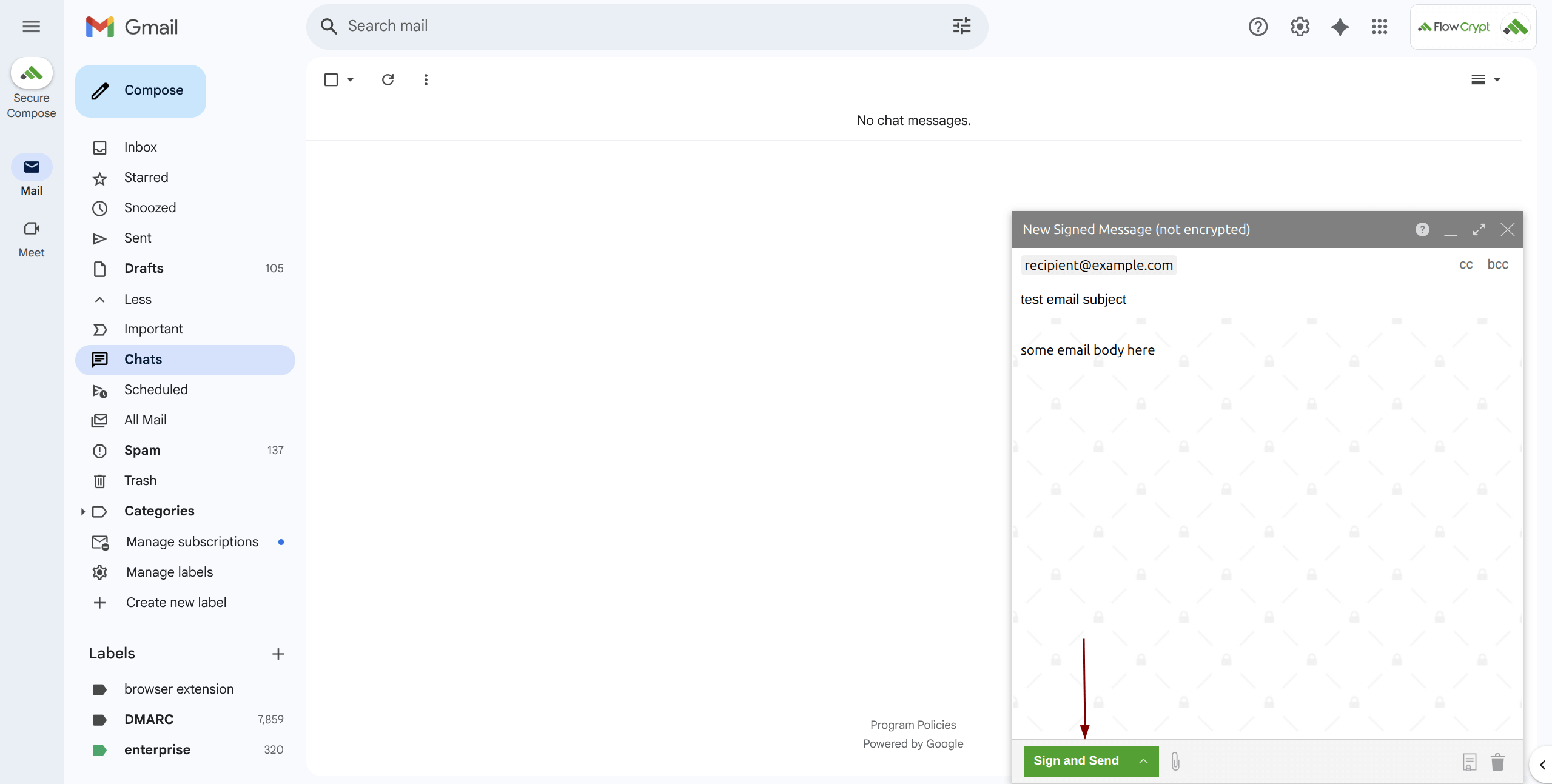
5. Complete your email by adding the recipient, subject, and body, then click Sign and Send to send it.